Are widgets free?
Yes. Prayer time widgets are part of the free NoorClock download.
 NoorClock
Guide
Opening an app five times a day works — but iOS widgets and Live Activities let you see the next prayer and how long until it begins without unlocking your phone. For busy schedules, that glanceable information matters.
NoorClock provides Home Screen widgets, Lock Screen widgets, and Live Activities that surface the upcoming prayer. The widget stays in sync with the same accurate schedule as the main app — including your location and calculation preferences.
Because NoorClock is ad-free, your Lock Screen stays clean. There are no promotional banners competing with worship times.
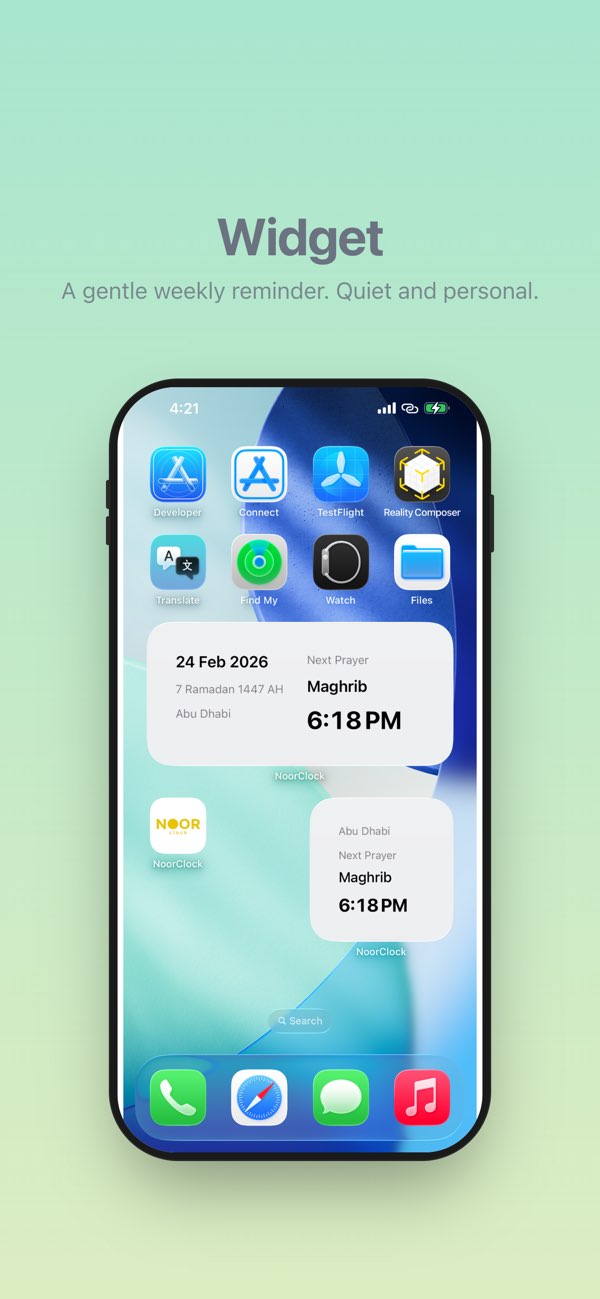
In addition to iPhone widgets, NoorClock's Apple Watch app shows today's times on your wrist — another way to stay aware without pulling out your phone.
Yes. Prayer time widgets are part of the free NoorClock download.
iOS refreshes widgets on a system schedule. Opening NoorClock or changing location in the app helps keep times current. Live Activities update more frequently when active.
Lock Screen widgets require iOS 16 or later. Check the App Store listing for the latest minimum version.
Download NoorClock — widgets, Qibla, and reminders in one ad-free app.
Download on the App Store